Configure workflow-based ARIS report triggers
You can specify that ARIS Risk and Compliance triggers an ARIS report when a task is executed. The triggered ARIS report can, for example, generate objects. A task is completed when the predefined status combination is fulfilled. If you are familiar with script programming, you can create your own ARIS reports that trigger any actions.
Prerequisite
You have system administrator privileges in ARIS Risk and Compliance.
You are script administrator for this tenant.
One of the following objects is specified as context in the ARIS report: audit, audit step, regulatory change review, control execution, deficiency, incident, issue, loss, policy roll-out, policy roll-out approval, policy roll-out confirmation, policy review, questionnaire, risk assessment, sign-off, survey, control test.
In ARIS Architect create the report that is to be triggered
Start ARIS Architect.
Click ARIS >
 Administration. The Administration tab opens.
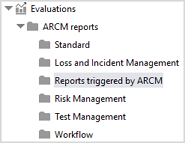
Click Evaluations > ARCM reports in the tree view. The report to be used for workflow-based ARIS report triggers in ARIS Risk and Compliance must be located in the ARCM reports folder.
For a better overview you can create a new category for these reports. To do so right-click ARCM reports, then click New >
 Category.
Enter a category name, for example, Reports triggered by ARCM.
Click OK. The category is created. Example:
To create a new report, right-click the newly created category, for example, Reports triggered by ARCM, then click New >
 Report. The Script Wizard opens.
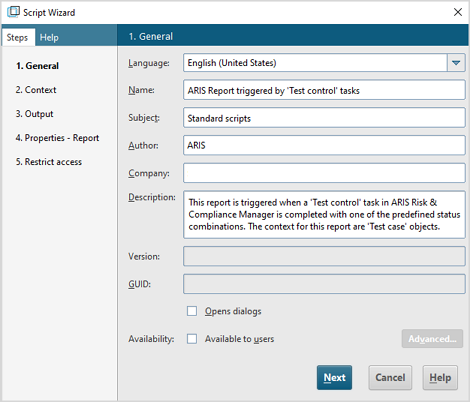
Enter a name and, if necessary, a description for the report.
To ensure that neither a dialog nor the report itself is displayed to the user performing the triggering task, disable Opens dialog and Available to users. Example:
Click Next.
Specify the ARIS Risk and Compliance objects for which the report is to be automatically run. To do so, enable Objects, then click None to disable all check boxes and enable the relevant object, for example, Control test, to create a report for the ARIS Risk and Compliance task Test control. Example:
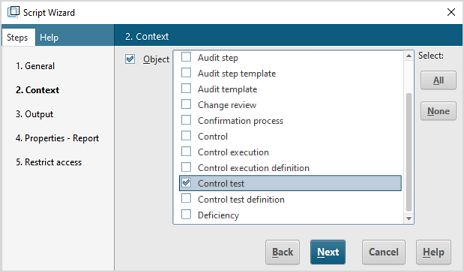
Only select objects that are specified for Workflow-based ARIS report triggers in ARIS Risk and Compliance. See Prerequisite above. You can find the relevant object (= ARIS report context) under the ARIS Risk and Compliance task for which you want to trigger the report (ARIS Risk and Compliance >
 Administration > Integration > Workflow-based ARIS report triggers > <component>).
Example: The relevant context for Test control tasks are Control test objects. See image in step 4 of Configure workflow-based ARIS report triggers in ARIS Risk and Compliance.
Click Next.
To ensure that the output file is not displayed to the user performing the triggering task, disable Generate output file.
Click Next.
Click Finish. The newly created report is displayed.
Enter the program code.
Save your entries and click X in the tab title to close the ARIS report.
The ARIS report is created.
Configure workflow-based ARIS report triggers in ARIS Risk and Compliance
Click
Administration > Integration.Under Workflow management, click Workflow-based ARIS report triggers.
Select a component from the list on the left, for example, Test Management. The current configuration of workflow-based ARIS report triggers of the selected component is displayed.
Under the relevant task, for example, Test control, select the report in the ARIS report triggered at task completion row.
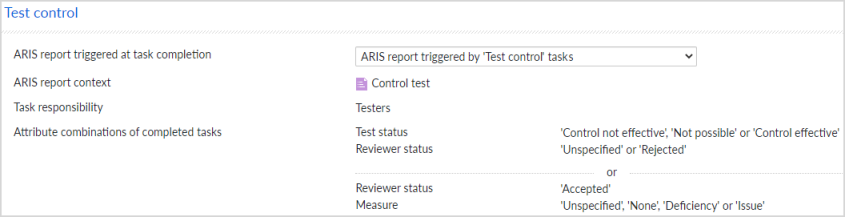
If no report is available, check in ARIS Architect if the relevant ARIS report has this object set as context. In this example, the context for the ARIS report must be Control test.
Your changes are automatically saved. The selected report is automatically triggered based on the configuration that in turn automatically triggers the corresponding action.